Opis
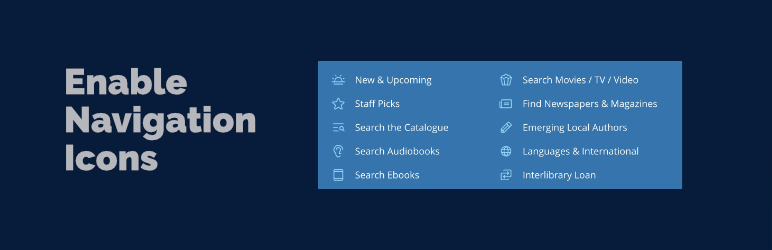
Enable Navigation Icons makes it simple to add and customize icons for your WordPress Navigation Block items. Whether you're building a simple menu or complex mega menu navigation, this plugin provides intuitive controls for adding beautiful icons to your navigation links.
Try it in WordPress Playground — test the plugin instantly in your browser, no installation required.
Recommended Companion Plugin: Use the Icon Block plugin to add custom icon sets and expand your icon library options. Icon Block is a powerful companion that allows you to register additional icon libraries for use with Enable Navigation Icons.
Key Features
Icon Selection
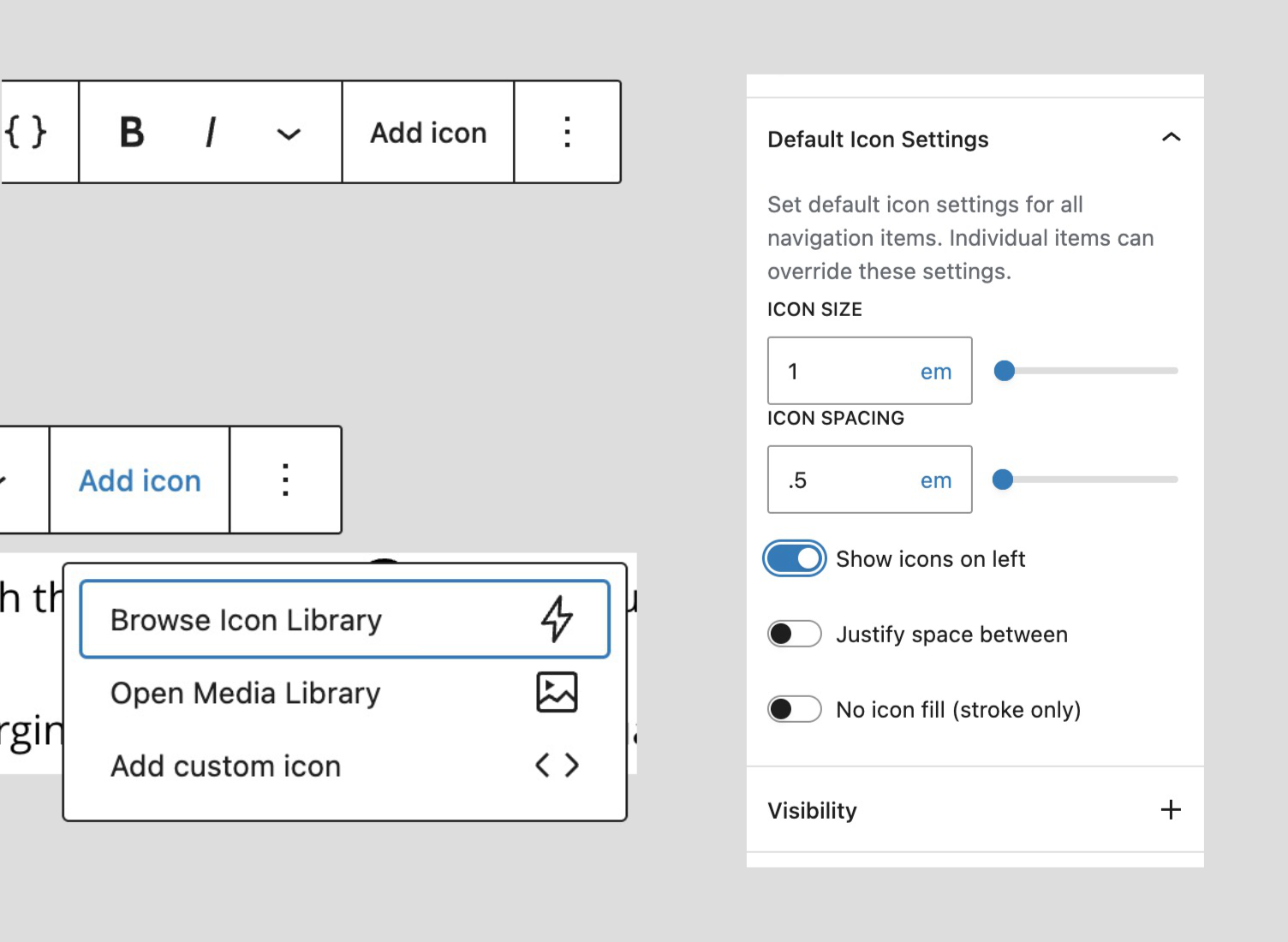
* Browse and select from a curated collection of WordPress icons
* Browse icons registered with the WordPress Icon API on WordPress 7.1+, including core's icon set and any collection added by your theme or other plugins
* Upload and use custom SVG icons from your media library
* Paste custom SVG code directly for complete flexibility
Icon Positioning
* Position icons before or after navigation link text (left/right)
* Space between justification for full-width layouts
* Vertical alignment options (top, center, bottom) for multi-line menu items
* Fine-tune icon position with vertical offset (supports px, %, em, rem units)
Icon Styling
* Adjust icon dimensions with a slider control (supports px, em, rem units)
* Control the gap between icon and text (supports px, em, rem units)
* Choose from theme colors or set a custom color
* Rotate icons in 15 degree steps
* Flip icons horizontally or vertically
* Support for stroke-based icons with “No Fill” option (e.g., Lucide icons)
Navigation Block Default Settings
Set default icon settings at the Navigation block level that apply to all child navigation items:
* Configure size, spacing, color, position, vertical alignment, offset, rotation, flipping, and styling once for the entire navigation
* Individual navigation items can inherit defaults or use custom settings
* Works seamlessly with multiple and nested Navigation blocks
* Applies to both inline navigation items and dynamically loaded WordPress menus
This feature streamlines icon management for large navigation menus by eliminating repetitive configuration while maintaining flexibility for individual items.
Ollie Menu Designer Integration
Full support for the Ollie Menu Designer plugin's mega menu dropdown items:
* Add icons to Ollie mega menu dropdown navigation items
* Same icon selection and styling options as standard navigation items
* Works seamlessly with Ollie themes and the Menu Designer plugin
WordPress Icon API Support (WordPress 7.1+)
On WordPress 7.1 and later the plugin integrates with the new SVG Icon API in both directions:
* Icons registered with the Icon API appear in the icon library alongside the plugin's bundled icons
* Icons chosen from the registry are stored by name and rendered server-side, so no SVG markup is written into your post content
* The plugin's own icon set is published as an enable-navigation-icons collection, making it available to the core Icon block, to other plugins, and over the REST API
Icons picked from the plugin's built-in library are also stored by name — resolved from data the plugin ships with, so this works on every supported WordPress version, not just 7.1. Your post content stays clean everywhere.
All of this is additive. Existing navigation icons keep working exactly as before, with no migration required, and the plugin continues to run normally on WordPress 6.3 through 7.0.
Supported Blocks
core/navigation– Navigation block (for setting default icon settings)core/navigation-link– Standard navigation linkscore/navigation-submenu– Submenu/dropdown navigation itemsollie/mega-menu– Ollie Menu Designer dropdown menu items (requires Ollie Menu Designer plugin)
Credits
This plugin was inspired by and incorporates code and ideas from the enable-button-icons project. Special thanks to @ndiego for his excellent work on button icon functionality, which served as a foundation for implementing navigation icon features.
Slike ekrana
Instalacija
- Upload the plugin files to the
/wp-content/plugins/enable-navigation-iconsdirectory, or install the plugin through the WordPress plugins screen directly. - Activate the plugin through the ‘Plugins’ screen in WordPress.
- Add or edit a Navigation block in the block editor.
- Select a navigation link or submenu item.
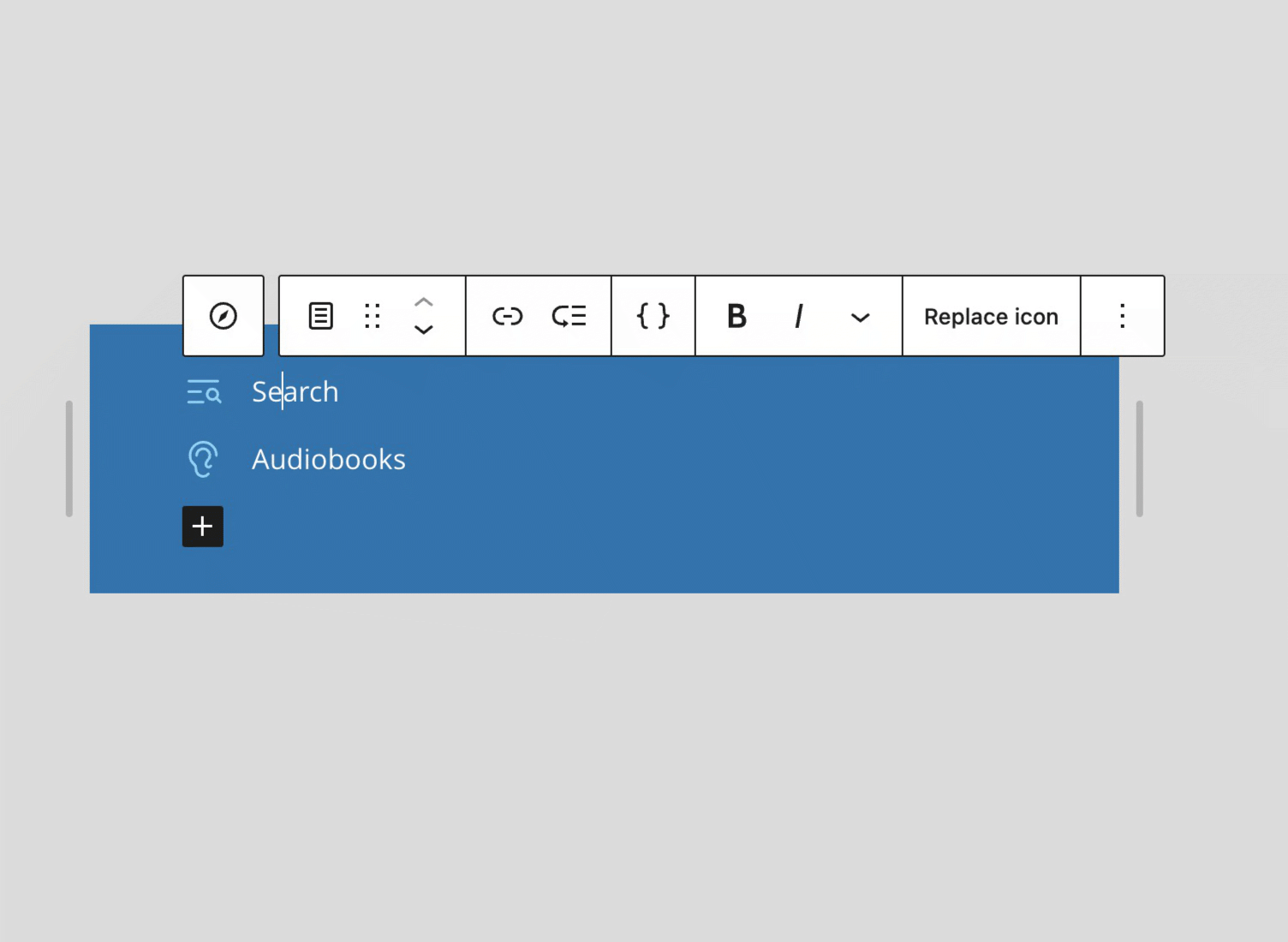
- Click “Add icon” in the block toolbar to get started.
ČPP
-
Does this work with any theme?
-
Yes! Enable Navigation Icons works with any WordPress theme that supports the block editor and Navigation blocks.
-
Can I use custom SVG icons?
-
Absolutely! You can use icons from the built-in library, upload SVG files from your media library, or paste custom SVG code directly.
-
Yes! The plugin works with both inline navigation items and dynamically loaded WordPress menus.
-
Yes! Select the Navigation block (parent container) and configure default icon settings that will apply to all child navigation items. Individual items can still override these defaults if needed.
-
Yes! The plugin fully supports Ollie Menu Designer's mega menu dropdown items with the same functionality as standard navigation items.
Recenzije

Saradnici i programeri
“Enable Navigation Icons” is open source software. The following people have contributed to this plugin.
Doprinositelji
Prevedi “Enable Navigation Icons” na vaš jezik.
Zainteresirani za razvoj?
Pregledajte kôd, pogledajte SVN spremišteili se pretplatite na dnevnik razvoja od RSS.
Zapis promijena
1.0.1
- Fix the distributed plugin package including the repository's version control directory, which inflated the download from roughly 170 KB to 916 KB. No functional changes.
1.0.0
First stable release. Adds support for the WordPress Icon API introduced in WordPress 7.1, alongside new rotation and flip controls. Existing icons are unaffected and no migration is required.
WordPress Icon API support (WordPress 7.1+)
- Browse icons registered with core's SVG Icon API directly in the icon library, including WordPress core's own icon set and any collection registered by your theme or another plugin
- Icons chosen from a collection are stored by name and rendered on the server, so no SVG markup is written into your post content
- The plugin's bundled icon set is published as an
enable-navigation-iconsicon collection, making all 297 icons available to the core Icon block, to other plugins, and over the REST API
Cleaner post content on every supported version
- Icons picked from the built-in library are now stored by name and resolved from data the plugin ships with, so post content stays free of SVG markup on WordPress 6.3 and later, not only on 7.1
- Content remains portable between sites running any supported WordPress version
New icon controls
- Rotate icons, in 15 degree steps, per navigation item or as a Navigation block default
- Flip icons horizontally and vertically, matching the core Icon block's controls and CSS class names
- Rotation and flipping combine correctly, and both work for built-in, custom, and collection icons
Fixes and improvements
- Fix editor interface strings not being translatable: text domains are now correct throughout and JavaScript strings are included in the translation template
- Fix icon size and rotation not applying to the editor preview for icons rendered from a collection
- Only download the icon registry when it is actually needed, rather than on every editor load
- Match the core Icon block's render model, using the CSS
rotateproperty andbox-sizingon icon SVGs so shared icons render consistently wherever they appear - Two bundled icons that core's SVG sanitizer could not represent are now published correctly
Compatibility
- Tested with WordPress 7.1
- Requires WordPress 6.3 or later, and continues to run unchanged on 6.3 through 7.0
- Existing navigation icons keep working exactly as before, with no migration and no changes to the CSS classes themes target
0.2.1
- Confirm compatibility with WordPress 7.0
- Update npm dependencies
- Remove legacy WordPress 6.1 fallback code (minimum version is 6.3)
0.2.0
- Add icon vertical alignment option (top, center, bottom) for multi-line menu items
- Add icon vertical offset for fine-tuning icon position (supports px, %, em, rem units)
- Add WordPress Playground support for local development and testing
- Fix icon size and spacing not applying to submenu/dropdown items rendered as button elements
- Update Node.js to 22 LTS and update npm dependencies
0.1.1
- Fix submenu icon not appearing on parent item when children have their own icons
- Fix icon injection for submenu items rendered as button elements (click-to-open mode)
- Fix icon styles leaking from parent submenu into child navigation items in editor and frontend
- Fix block error when adding custom icon to navigation item with no existing icon
0.1.0
- Initial release
- Icon selection (library, media, custom SVG)
- Icon positioning (left/right, space between)
- Icon styling (size, spacing, color, no fill option)
- Navigation block default settings
- Support for core/navigation-link and core/navigation-submenu blocks
- Support for Ollie Menu Designer mega menu blocks